Expose Home Lab Servers Securely Without Opening Ports Using AWS Reverse Proxy
Introduction
Do you want to securely expose your home lab services (like Grafana, Portainer, or Nextcloud) to the internet without opening any ports on your home network? By using Tailscale and an AWS-based Nginx reverse proxy, you can achieve this securely without exposing your home IP or opening firewall ports or you are behind CNAT.
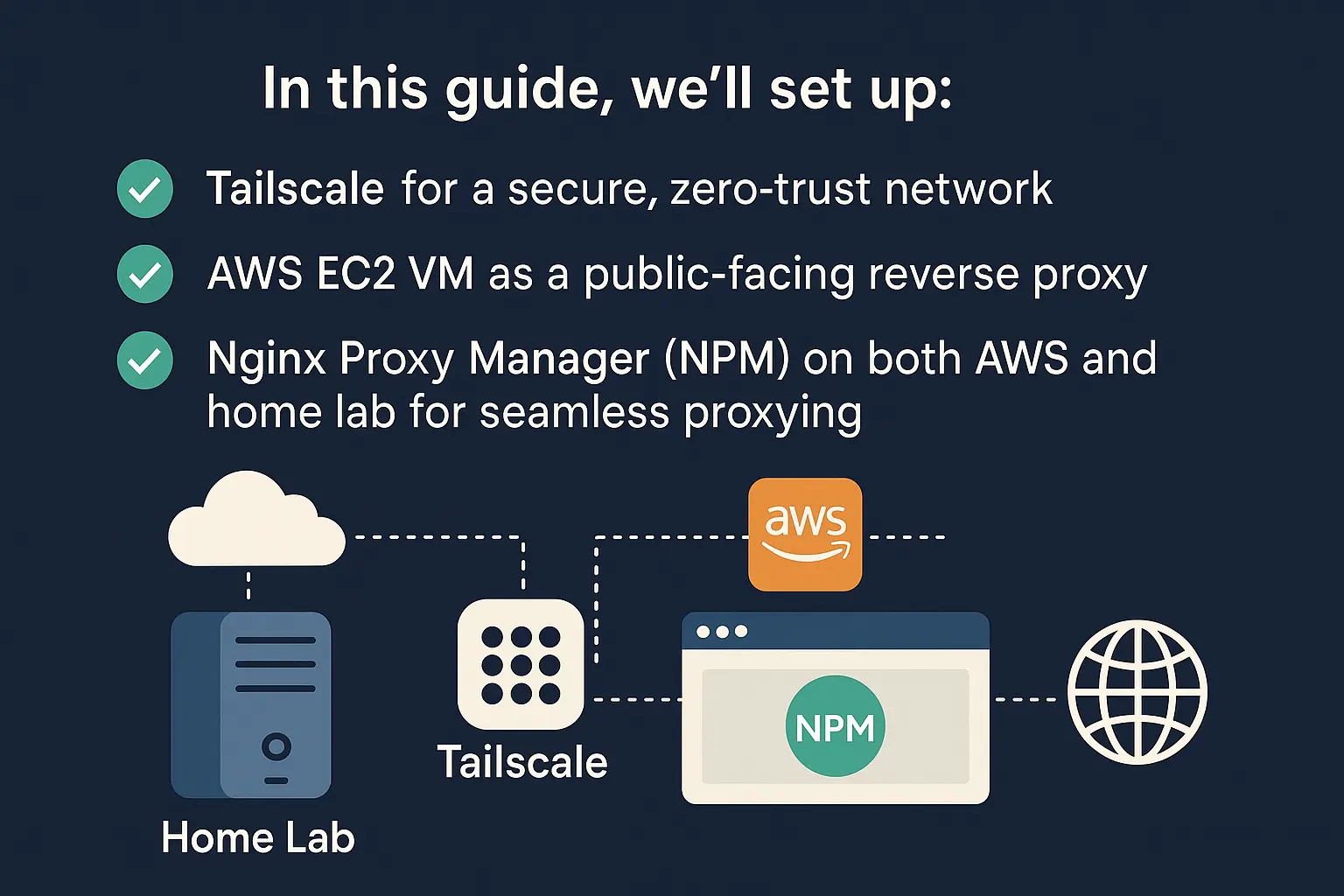
In this guide, we’ll set up:
✅ Tailscale for a secure, zero-trust network
✅ AWS EC2 VM as a public-facing reverse proxy
✅ Nginx Proxy Manager (NPM) on both AWS and home lab for seamless proxying
Prerequisites
- A home lab (Raspberry Pi, Proxmox, or any server)
- An AWS EC2 instance (or any cloud VM)
- Tailscale installed on both home lab and AWS
- Docker & Docker Compose on both machines
Step 1: Install Tailscale on Both Machines
Tailscale creates a secure mesh VPN between your devices without exposing ports.
On AWS EC2:
1
2
curl -fsSL https://tailscale.com/install.sh | sh
sudo tailscale up
On Home Lab:
1
2
curl -fsSL https://tailscale.com/install.sh | sh
sudo tailscale up
After authenticating, note your home lab’s Tailscale IP (e.g., 100.x.y.z).

Step 2: Set Up Nginx Proxy Manager (NPM) on AWS
We’ll use NPM on AWS to forward public traffic securely to your home lab via Tailscale.
Run NPM on AWS with Docker:
1
2
mkdir npm && cd npm
nano docker-compose.yml
Paste:
1
2
3
4
5
6
7
8
9
10
11
12
version: '3'
services:
  app:
    image: 'jc21/nginx-proxy-manager:latest'
    ports:
      - '80:80'
      - '443:443'
      - '81:81'
    volumes:
      - ./data:/data
      - ./letsencrypt:/etc/letsencrypt
    restart: unless-stopped
Start NPM:
1
docker-compose up -d
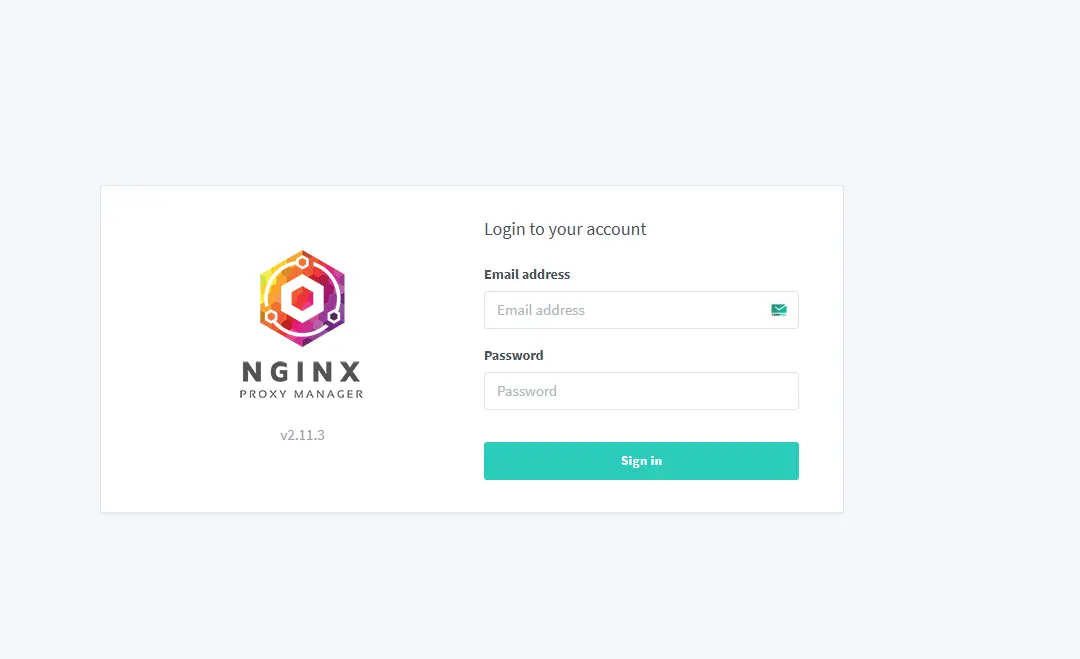
Access NPM at http://<AWS_PUBLIC_IP>:81 (default login: [email protected] / changeme).
Step 3: Configure Reverse Proxy on AWS NPM
- Go to Hosts → Proxy Hosts → Add Proxy Host
- Enter:
- Domain Name:
yourdomain.com(or a subdomain likegrafana.yourdomain.com) - Forward Hostname/IP:
<HomeLab_Tailscale_IP>(e.g.,100.x.y.z) - Forward Port:
80(or the port your home NPM is running on) - Enable SSL (Use Let’s Encrypt for HTTPS)
- Domain Name:

Step 4: Set Up Nginx Proxy Manager on Home Lab
Now, configure NPM at home to forward traffic to your actual services (e.g., Grafana).
Run NPM on Home Lab:
1
2
mkdir homelab-npm && cd homelab-npm
nano docker-compose.yml
Paste:
1
2
3
4
5
6
7
8
9
version: '3'
services:
  app:
    image: 'jc21/nginx-proxy-manager:latest'
    ports:
      - '80:80'
    volumes:
      - ./data:/data
    restart: unless-stopped
Start NPM:
1
docker-compose up -d
Access at http://<HomeLab_IP>:81.
Configure Home Lab NPM Proxy
- Go to Proxy Hosts → Add Proxy Host
- Enter:
- Domain Name: Same as AWS (e.g.,
grafana.yourdomain.com) - Forward Hostname/IP:
grafana(Docker service name) - Forward Port:
3000(Grafana’s port) - Disable SSL (SSL is handled by AWS NPM)
- Domain Name: Same as AWS (e.g.,

Step 5: Test Your Setup
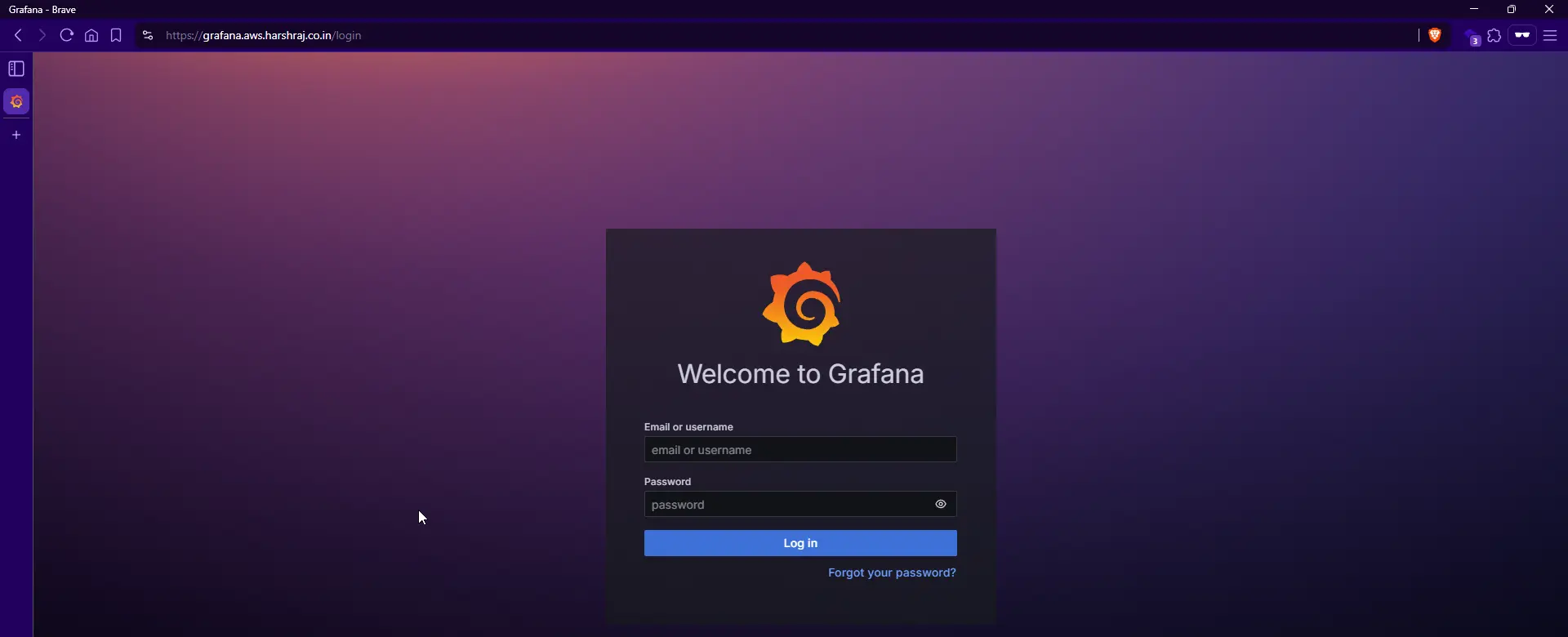
- Visit
https://grafana.yourdomain.com - Traffic flows:
Internet → AWS NPM (HTTPS) → Tailscale → Home NPM → Grafana
No ports are exposed on your home network!
Conclusion
By using Tailscale + AWS Nginx Proxy Manager, you can securely expose home lab services without opening ports. This setup:
✔ Improves security (no open ports, encrypted Tailscale traffic)
✔ Uses HTTPS (via AWS NPM)
✔ Works with Docker services (Grafana, Portainer, etc.)
Need help? Drop a comment below! 🚀