Mastering vLLM: Deploying Multi-Model Inference Stack on Consumer GPUs

Prefer listening? Hear this post read aloud.
Introduction
In the world of MLOps, serving Large Language Models (LLMs) efficiently is just as important as training them. While tools like Ollama are fantastic for quick local setups, vLLM is the enterprise-grade engine designed for high-throughput and memory-efficient serving.
In this guide, I’ll show you how to leverage vLLM and Docker Compose to deploy a production-ready stack of multiple open-source models on a single system. We will configure two separate models to run simultaneously on a consumer-grade laptop GPU (RTX 4050 6GB), all accessible through a seamless Open WebUI interface.
✅ High Throughput: Powered by PagedAttention.
✅ Multi-Model Support: Running Qwen3-1.7B and 0.6B concurrently.
✅ OpenAI Compatible: Seamless integration with existing tools.
✅ VRAM Optimized: Using INT8 quantization to fit in 6GB VRAM.
Architecture & System Specs
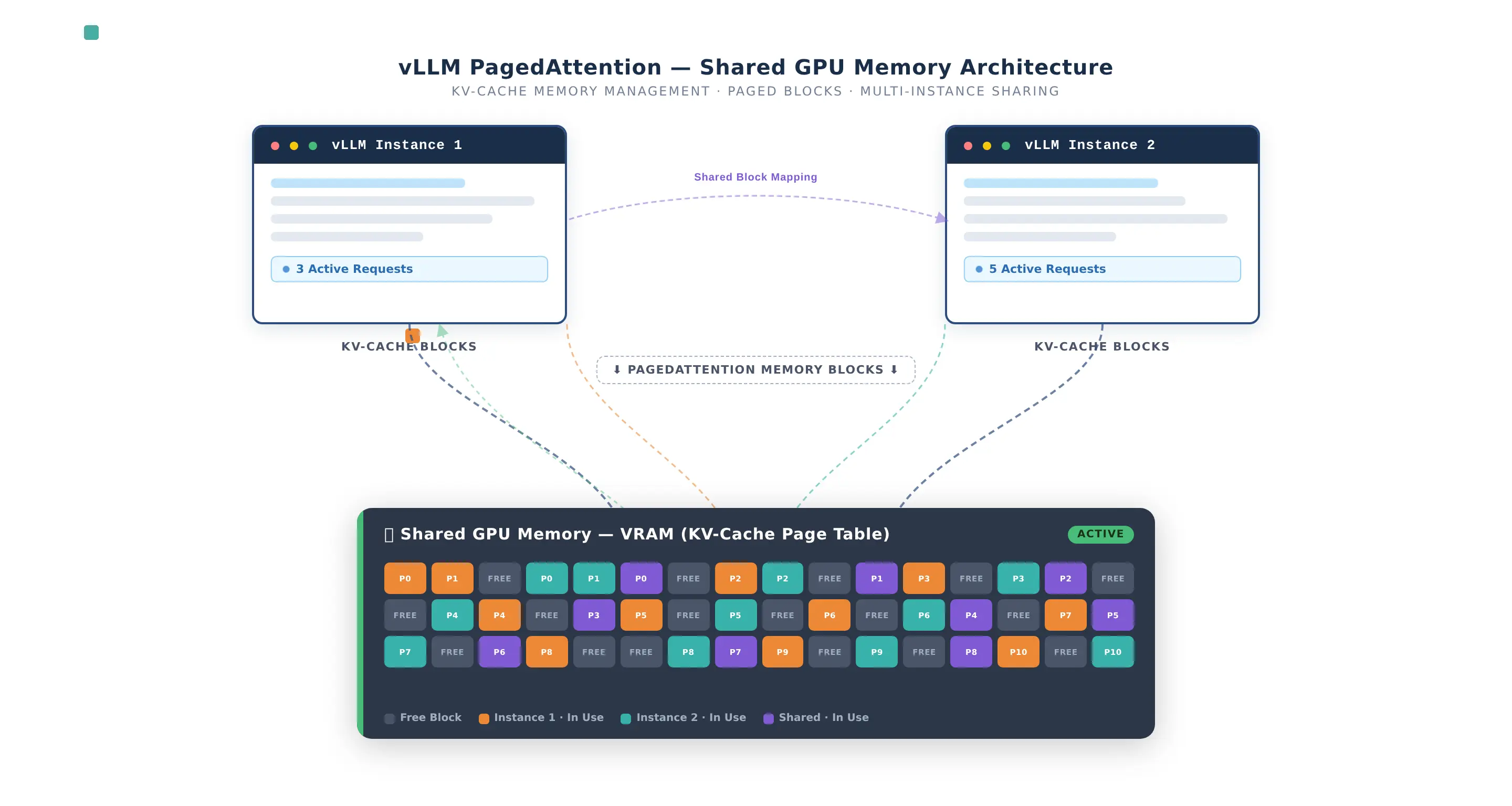
The secret sauce of vLLM is PagedAttention, which manages KV cache memory so efficiently that we can precisely allocate VRAM to multiple instances without crashing the system.
- GPU: NVIDIA RTX 4050 Laptop (6GB VRAM)
- OS: WSL2 (Windows)
- Engine: vLLM v0.19.1
- UI: Open WebUI
The Docker Compose Stack
Here is the complete configuration. This stack is designed for VRAM sharing—allocating 55% of memory to a high-quality model and 30% to a lightweight, fast model.
1
2
3
4
5
6
7
8
9
10
11
12
13
14
15
16
17
18
19
20
21
22
23
24
25
26
27
28
29
30
31
32
33
34
35
36
37
38
39
40
41
42
43
44
45
46
47
48
49
50
51
52
53
54
55
56
57
58
59
60
61
62
63
64
65
66
67
68
69
70
71
72
services:
  # MODEL 1 — Qwen3-1.7B (INT8 Quantized)
  vllm-qwen3-1-7b:
    image: vllm/vllm-openai:v0.19.1
    container_name: vllm-qwen3-1-7b
    runtime: nvidia
    ports:
      - "8000:8000"
    volumes:
      - huggingface_cache:/root/.cache/huggingface
    environment:
      - NVIDIA_VISIBLE_DEVICES=all
    ipc: host
    ulimits:
      memlock: -1
      stack: 67108864
    command: >
      --model Qwen/Qwen3-1.7B
      --served-model-name qwen3-1.7b
      --gpu-memory-utilization 0.55
      --max-model-len 2048
      --enforce-eager
      --quantization bitsandbytes
      --load-format bitsandbytes
    deploy:
      resources:
        reservations:
          devices:
            - driver: nvidia
              count: 1
              capabilities: [gpu]

  # MODEL 2 — Qwen3-0.6B (float16)
  vllm-qwen3-0-6b:
    image: vllm/vllm-openai:v0.19.1
    container_name: vllm-qwen3-0-6b
    runtime: nvidia
    ports:
      - "8001:8000"
    volumes:
      - huggingface_cache:/root/.cache/huggingface
    command: >
      --model Qwen/Qwen3-0.6B
      --served-model-name qwen3-0.6b
      --gpu-memory-utilization 0.30
      --max-model-len 1024
      --enforce-eager
    deploy:
      resources:
        reservations:
          devices:
            - driver: nvidia
              count: 1
              capabilities: [gpu]

  # OPEN WEBUI — The Interface
  open-webui:
    image: ghcr.io/open-webui/open-webui:v0.9.1
    container_name: open-webui
    ports:
      - "3000:8080"
    environment:
      - OPENAI_API_BASE_URLS=http://vllm-qwen3-1-7b:8000/v1;http://vllm-qwen3-0-6b:8000/v1
      - OPENAI_API_KEY=not-required
      - ENABLE_OLLAMA_API=false
    depends_on:
      - vllm-qwen3-1-7b
      - vllm-qwen3-0-6b

volumes:
  huggingface_cache:
  open_webui_data:
Breaking Down the Configuration
Understanding these flags is crucial for enterprise deployments:
runtime: nvidia: Tells Docker to use the NVIDIA Container Toolkit to bridge the GPU into the container.ipc: host: Essential for high-performance multi-process memory sharing.ulimits: memlock: -1: Allows vLLM to lock memory for the GPU, preventing performance-killing swaps.--gpu-memory-utilization: This is the magic knob. We set 0.55 (55%) for the 1.7B model and 0.30 (30%) for the 0.6B model. Together with overhead, this fits perfectly into 6GB.--quantization bitsandbytes: Converts the 1.7B model to 8-bit (INT8) on the fly, drastically reducing VRAM footprint without significant quality loss.--enforce-eager: Disables CUDA graphs. While slightly slower, it saves ~500MB of VRAM—critical on consumer GPUs.OPENAI_API_BASE_URLS: Open WebUI can connect to multiple backends. We simply list our two vLLM containers here.
Implementation Steps
1. Preparation
Ensure you have the NVIDIA Container Toolkit installed on your host. If you’re on Windows, use WSL2 with the latest NVIDIA drivers.
2. Launch the Stack
1
docker compose up -d
vLLM will begin downloading the model weights. You can monitor the progress with:
1
docker compose logs -f
3. Access the UI
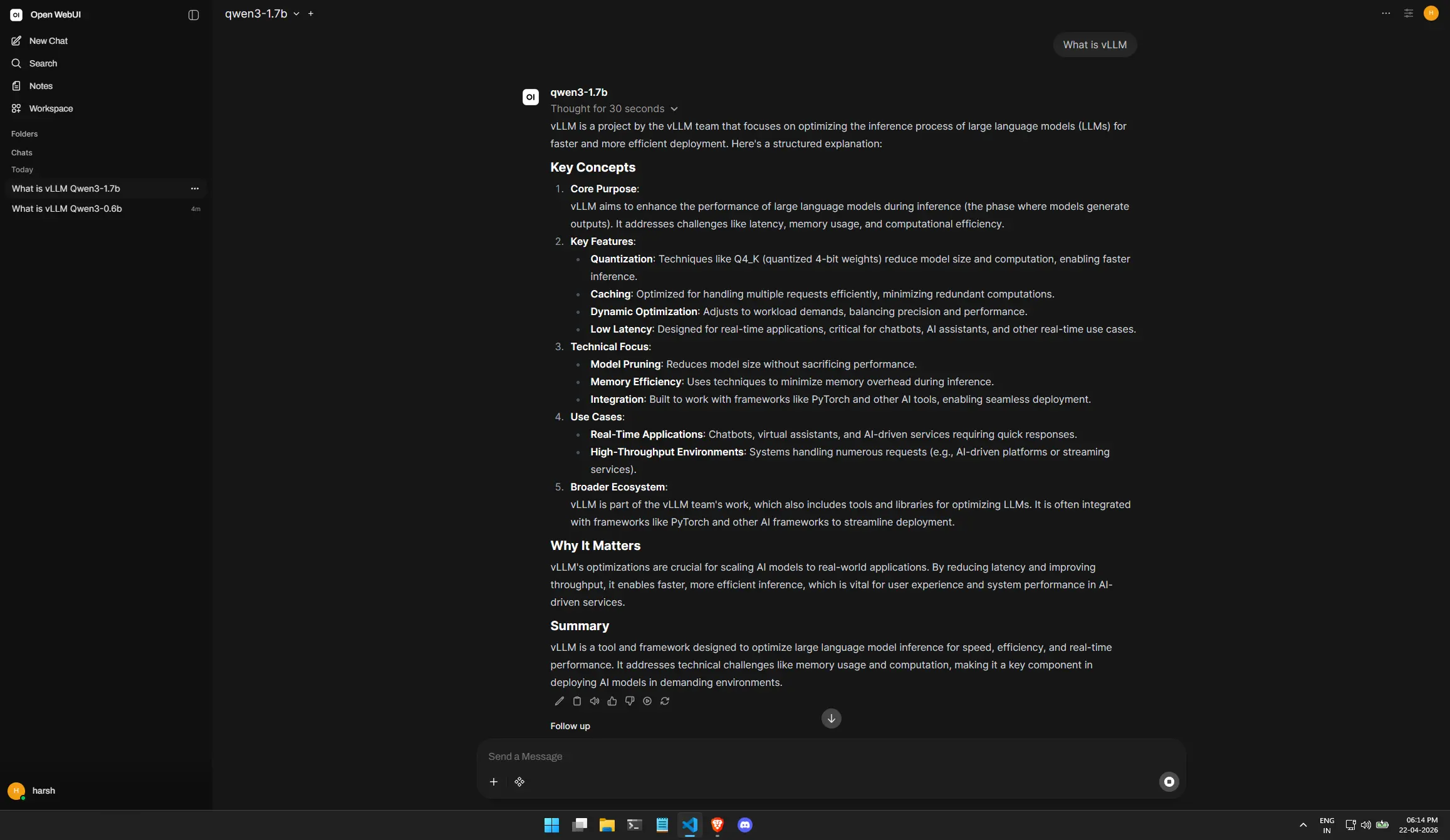
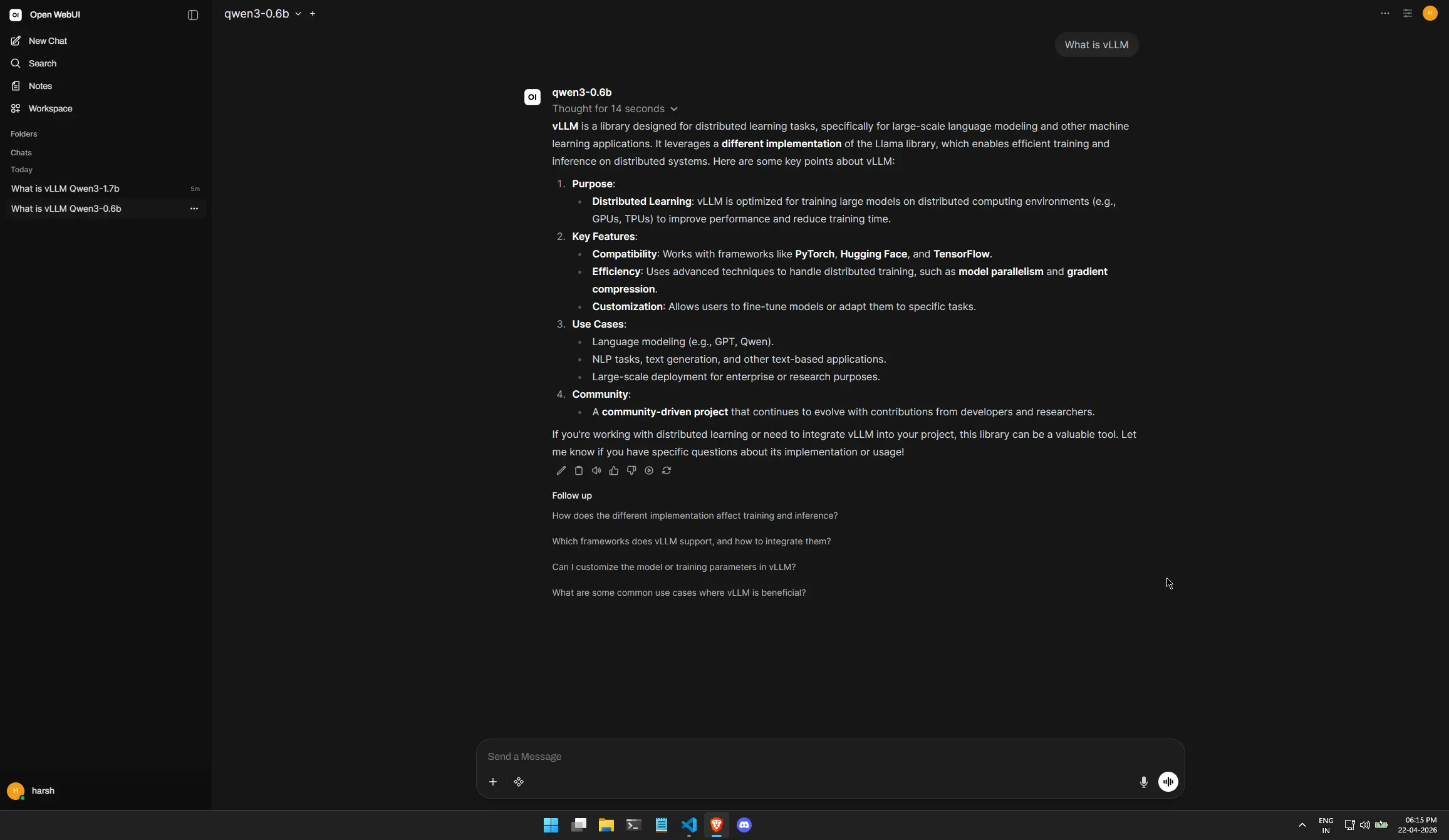
Head over to http://localhost:3000. Create your local account, and you will see both qwen3-1.7b and qwen3-0.6b in the model selection dropdown!
Proof of Performance
Here you can see both models active. Notice how we can switch between the “Heavyweight” 1.7B model for reasoning and the “Lightweight” 0.6B model for quick chats.
Conclusion
vLLM isn’t just for data centers with A100s. By leveraging PagedAttention and Quantization, we can run a sophisticated, multi-model inference stack on our local machines. This setup proves that you can build enterprise-ready AI infrastructure using open-source tools and standard hardware.
I hope this guide helps you in your MLOps journey and empowers you to deploy high-performance LLM infrastructure at home! 🚀