Fix Bazzite KDE Dual-Monitor Black Screen at Login
How I fixed a black login screen with DisplayPort and HDMI monitors on Bazzite KDE by saving a working 144 Hz setup and applying Plasma settings to the login screen.
Prefer listening? Hear this post read aloud.
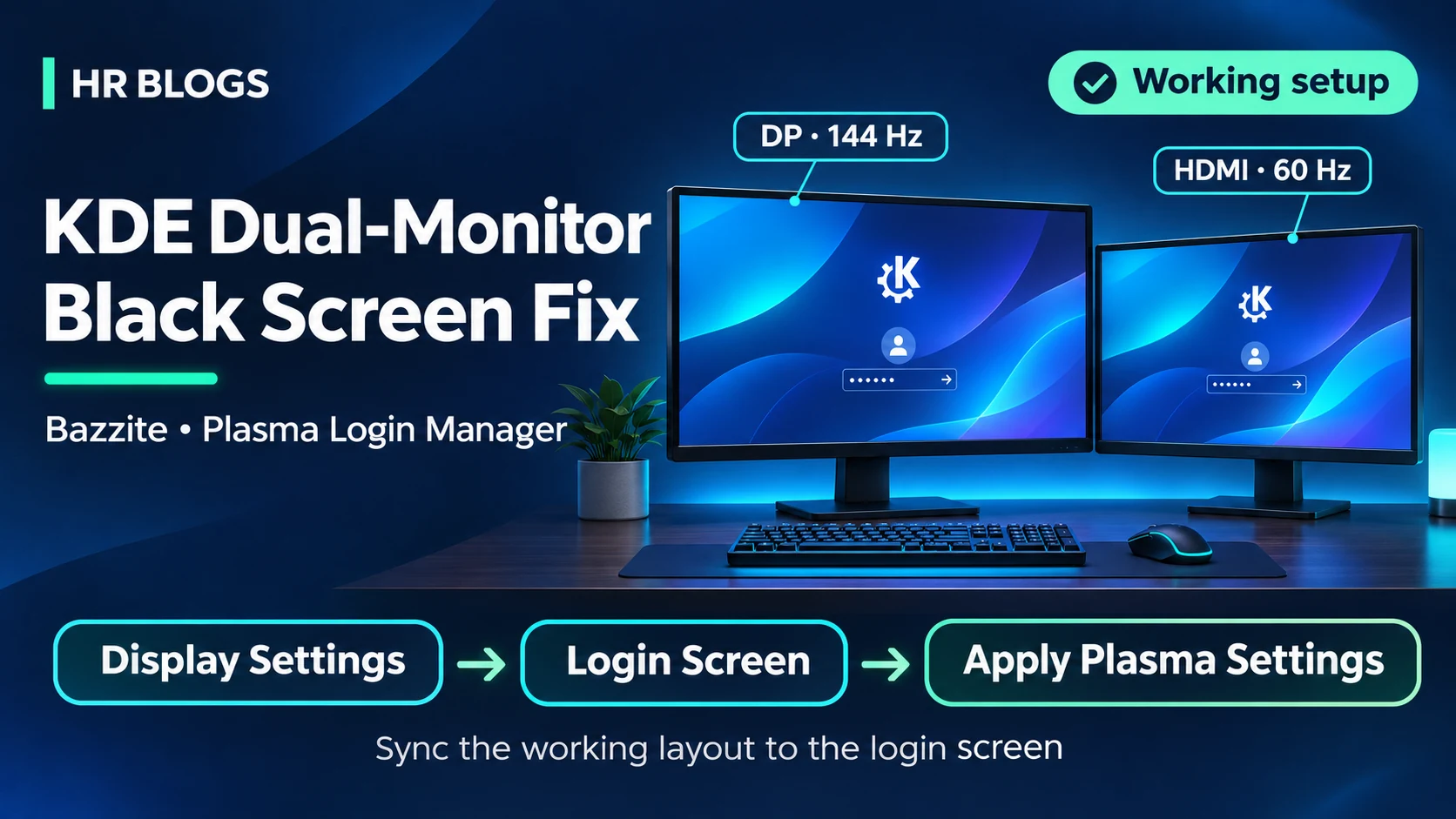
My Bazzite KDE system showed a black login screen when both DisplayPort and HDMI monitors were connected. Applying the working display setup through Login Screen → Apply Plasma Settings… fixed it.
Symptoms
| Monitor setup | Result |
|---|---|
| Boot with DP only | Login screen worked |
| Boot with DP + HDMI | Black screen; no login page |
| Disconnect HDMI after the failure | Cursor appeared, but login page stayed missing |
| Boot with DP only, log in, change 240 Hz → 144 Hz, then connect HDMI | Both monitors worked |
My working setup
- OS: Bazzite 44, KDE Plasma on Wayland
- GPU: AMD Radeon RX 570 (
amdgpu) - Login manager: Plasma Login Manager (
plasmalogin)
| Monitor | Connection | Resolution | Refresh rate |
|---|---|---|---|
| Main | DisplayPort | 2560 × 1440 | 144 Hz |
| Secondary | HDMI | 1920 × 1080 | 60 Hz |
The fix
- Reach the desktop: boot with only the DP monitor connected if necessary.
- Set a working refresh rate: open System Settings → Display & Monitor → Display Configuration, change the main monitor to 144 Hz, and apply it.
- Connect HDMI: confirm both screens work, arrange their positions, and click Apply to save the complete layout.
- Sync the login screen: search System Settings for Login Screen, open it, and click Apply Plasma Settings…. Confirm and authenticate if prompted.
- Test: save your work and reboot with both monitors connected.
To open the login settings page directly on Plasma Login Manager:
1
systemsettings kcm_plasmalogin
This opens the page; you still need to click Apply Plasma Settings….
Keep the known-working refresh rates for the reboot test. The 144 Hz / 60 Hz combination worked on my hardware; other setups may need different values.
Why this helped
- The login screen starts before your desktop session and can use separate display settings.
- Changing refresh rate in Display Configuration saves your desktop setup.
- Apply Plasma Settings… synchronizes relevant settings with the login screen, including the working display configuration. KDE discussion
This result suggests a configuration mismatch. I did not verify the failing login-screen refresh rate or establish whether 240 Hz can work with both monitors.
Still getting a black screen?
- Apply Plasma settings while both monitors are connected and working.
- Confirm you clicked Apply Plasma Settings…, beyond Apply in Display Configuration.
- Check your login manager; some KDE systems use SDDM instead.
1
2
3
4
5
# Identify the login manager
readlink -f /etc/systemd/system/display-manager.service

# For Plasma Login Manager: inspect this boot's logs
sudo journalctl -b -u plasmalogin --no-pager